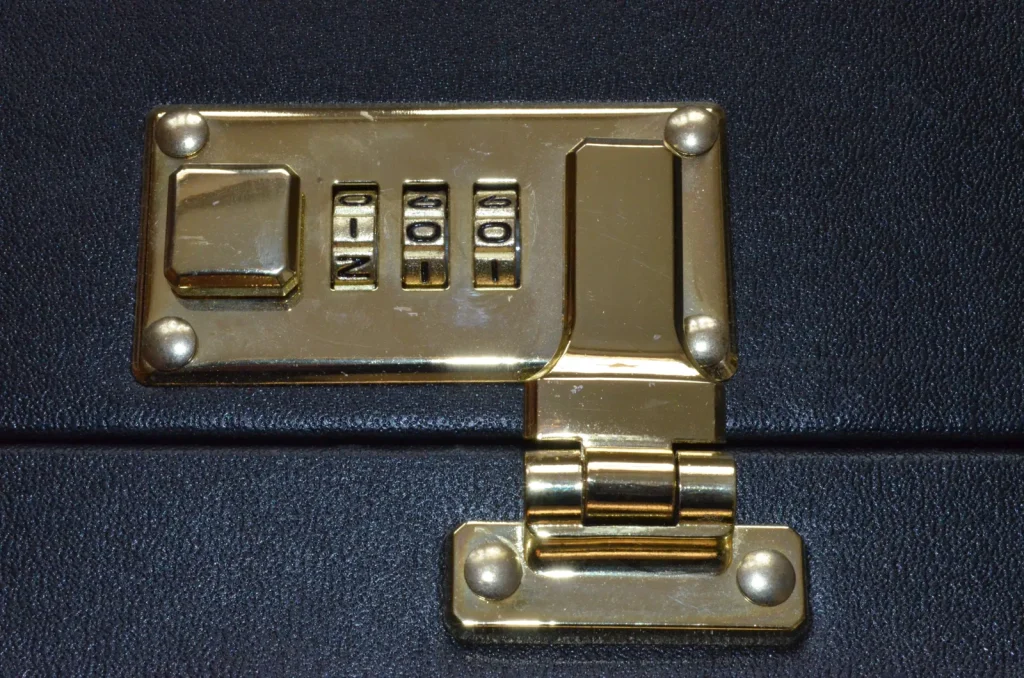
Two-factor authentication, often shortened to 2FA, asks for a second proof of identity in addition to your password when you log in. Even if someone steals or guesses your password, they still cannot get into your account without that second factor, which makes it one of the most effective protections available to ordinary users.
How two-factor authentication works
Security people group proofs of identity into three kinds: something you know (a password or PIN), something you have (a phone or a physical key) and something you are (a fingerprint or face scan). Two-factor authentication combines two different kinds. Entering a password and then a code from your phone is a classic example. Entering two passwords is not, because both are things you know.
The value is simple. Passwords leak, get phished and get reused. A second factor means a stolen password on its own is no longer enough. If you want to strengthen the first factor too, our guide to password manager basics is a good companion read.
The main types of second factor
Not all second factors offer the same protection. Here is a quick comparison.
| Method | How it works | Things to know |
|---|---|---|
| Text message code | A code is sent to your phone number | Easy to use, but weaker if someone can take over your number or trick you into sharing the code |
| Authenticator app | An app generates short-lived codes on your device | Works offline and does not depend on your phone number |
| Push approval | You tap approve on a prompt | Convenient, but easy to approve by mistake if you are tired or rushed |
| Hardware security key | A small physical device you plug in or tap | Strong against phishing, but you must keep it safe and have a backup |
| Passkey or biometric | Your device confirms it is really you | Smooth experience, tied to the device and its lock |
Which one should you choose?
Any second factor is better than none. If a service offers an authenticator app or a security key, those are generally stronger choices than text messages. If text messages are the only option, use them rather than nothing at all.
Setting up two-factor authentication step by step
- Start with your email account. Whoever controls your email can usually reset the passwords on everything else.
- Open the account’s security settings and look for options named two-step verification, multi-factor authentication or login verification.
- Choose your method and follow the prompts. If using an authenticator app, scan the setup code it shows.
- Save the backup codes. These one-time codes let you in if you lose your phone. Store them somewhere safe, such as a locked drawer or inside your password manager.
- Test it by logging out and back in.
- Repeat for banking, cloud storage, social media and shopping accounts.
Common mistakes with two-factor authentication
- Skipping backup codes. Losing a phone without them can lock you out for a long time.
- Sharing a code with someone who asks. No genuine support team will ask you to read out a login code. Scammers do, which is a common feature of phishing; see how to spot phishing emails.
- Approving prompts you did not start. If a push approval arrives out of nowhere, decline it and change your password, because someone may have it.
- Forgetting your phone number is a login key. If you change numbers, update your accounts first.
- Keeping everything on one device. If your authenticator app and your accounts are all on a single phone, losing it creates a headache. Consider a backup method.
What it does not protect against
Two-factor authentication is powerful but not magic. A fake login page can trick you into typing both your password and your code, and the attacker can use them right away. That is why paying attention to the address in your browser still matters, and why our article on recognizing fake websites is worth a look. Hardware keys and passkeys are designed to resist this kind of trick because they check the website’s real address.
Planning for lost phones and new devices
Before you need it, decide what you would do if your phone disappeared. Know where your backup codes are. Check whether your authenticator app can back up or transfer its entries to a new device, and learn how that works. Some services let you register more than one method, such as an app plus a security key kept at home. A second option is cheap insurance.
When you buy a new phone, move your authenticator entries before wiping the old one. Doing it in the wrong order is a common way to get locked out.
The rest of our cybersecurity articles cover other everyday protections in the same plain style.
Where to start
Pick your email account tonight and turn on a second factor, preferably an authenticator app. Save the backup codes somewhere safe, then work through your banking and social accounts over the next few days. It takes a few minutes per account and the protection lasts for as long as you keep the account.
Frequently asked questions
Is two-factor authentication really necessary?
It is one of the most effective protections you can add. If your password leaks, the second factor stops an attacker from simply logging in.
Are text message codes safe enough?
They are better than nothing, but an authenticator app or security key is generally stronger because it does not rely on your phone number.
What if I lose my phone?
Use your saved backup codes or another registered method to log in, then set up a new device. This is why storing backup codes safely matters.
Can two-factor authentication be bypassed?
Fake login pages can trick people into giving up codes, so stay alert to the web address. Security keys and passkeys are designed to resist that.