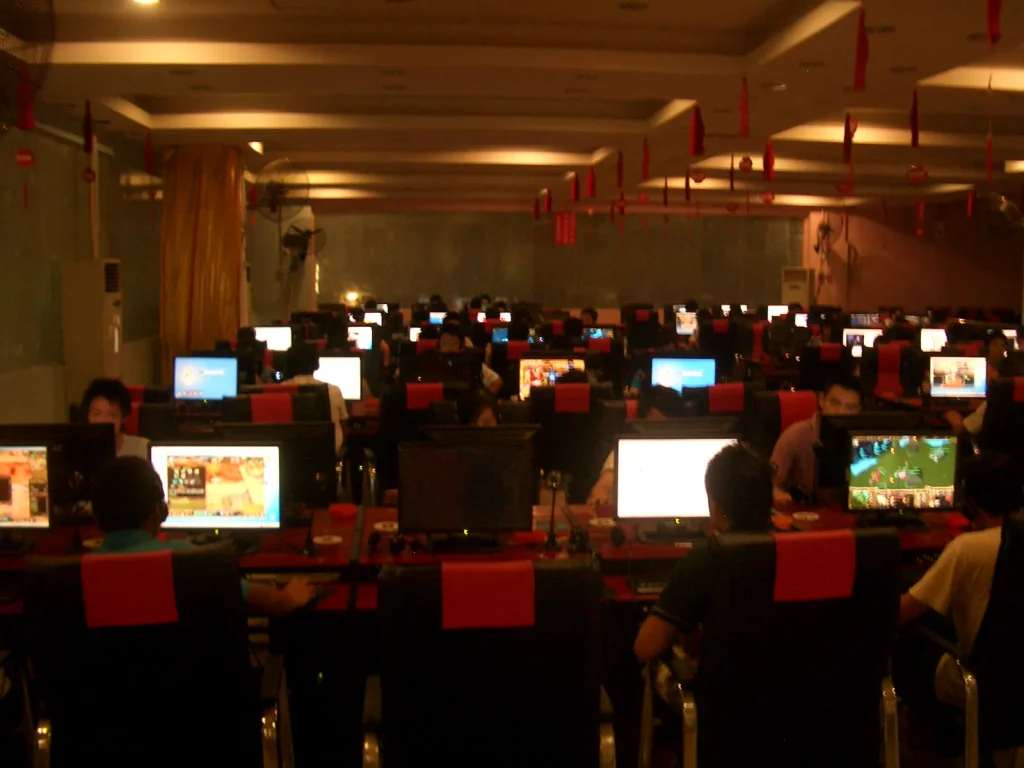
Public computer safety starts with one rule: treat any shared machine as untrusted, because you cannot know what is installed on it or who used it before you. Avoid sensitive tasks if you can, never save passwords or files, and log out of everything before you leave. If you must sign in to something important, use extra protections such as two-factor authentication and change your password afterwards from a device you trust.
Why public computer safety matters
On your own device you control the software, updates and settings. On a hotel business centre PC, a library terminal or an internet cafe machine, you control none of that. The computer could have a keylogger, a program that records what you type. It may run out-of-date software, or keep browsing data and downloads from earlier visitors. Most public machines are perfectly harmless, yet the downside of a rare bad one is large enough to justify caution.
The risk is different from public Wi-Fi, where the concern is the network between your device and the internet. With a public computer, the device itself is the weak point, and a VPN cannot fix that. If you want to compare the two situations, see our guide on whether public Wi-Fi is safe.
What to avoid doing
The safest approach is to decide before you sit down what you will not do on the machine.
- Online banking and payments. If a keylogger is present, it captures everything you type.
- Signing in to your main email unless it is truly necessary, since email can reset your other accounts.
- Entering card numbers, passport details or other identity data.
- Using a password manager’s master password. Anything that exposes it is a serious risk.
- Plugging in your own USB drive, which can carry malware back to your device.
- Accepting prompts to save passwords, install extensions or remember you on this device.
If you really need to do something sensitive, use your phone’s mobile data instead. It is almost always a better choice than a shared computer.
How to use a public computer more safely
Sometimes you simply need to print a boarding pass or check a document. These steps lower the risk.
Before you start
Open a private or incognito window, which keeps the browser from storing history, cookies and form data after you close it. Note that this does not protect against a keylogger or a network observer. Our guide to private browsing mode explains exactly what it does and does not do.
While you are signed in
- Type addresses yourself rather than following links from messages.
- Check for the padlock and correct domain before entering any login details.
- Use two-factor authentication so a captured password alone is not enough. Keep sessions short, because a captured password and a live code can still be used in the moment.
- Avoid downloading files to the machine, and do not leave work open and unattended.
When you finish
- Sign out of every account, not only close the tab.
- Close all private browser windows.
- Delete any files you downloaded and empty the recycle bin or downloads folder.
- Clear the browser history if it is not a private window.
- Do not leave a USB drive or printout behind.
Printing and files
Printing a boarding pass or a ticket is the most common reason to use a public computer. Remember that documents sent to a shared printer can sit in a queue or be picked up by the next person. Collect your printout right away and check that nothing else was printed with it. Where possible, use a mobile ticket or a PDF stored on your phone and avoid printing altogether.
If you need to open a file from cloud storage, use the web interface in a private window and sign out when done. Avoid saving anything to the computer’s desktop or documents folder, because it may remain after you leave. Where the machine is a hotel business centre, tell the front desk if you spot something odd, such as unfamiliar hardware plugged in between the keyboard and the computer.
What to do if you slipped up
If you signed in to something you now regret, act quickly from your own device:
- Change the password of that account, starting with your email.
- Sign out of all active sessions in the account’s security settings.
- Check recent activity and review account recovery settings.
- If you entered payment details, watch your statements and contact your bank or card issuer for guidance.
Using unique passwords through a password manager means a leaked login only opens a single door, which makes mistakes much less damaging.
Where to start
Keep a short routine in mind: private window, no sensitive tasks, sign out, clean up, and change passwords if in doubt. Better still, make your own devices more useful so that you rarely need a public one. For more ways to stay safe on the road, visit our Travel & Remote Work guides.
Frequently asked questions
Is it safe to log in to email on a public computer?
It carries risk, since the machine may record keystrokes. If you must, use two-factor authentication, sign out fully and change your password afterwards from a trusted device.
Does incognito mode protect me on a shared computer?
It stops the browser from keeping your history and cookies afterwards, but it does not stop keyloggers or anyone watching the network.
Can a VPN make a public computer safe?
No. A VPN protects traffic on the network, but it cannot protect you from software already on the computer, so avoid sensitive tasks on shared machines.
What should I do after using a hotel business centre?
Sign out of all accounts, delete downloaded files and collect printouts. If you entered anything sensitive, change those passwords from your own device.